May 17, 2012 11:32:48 AM (GMT+10) © 2001 - 2012 r2 Studios. All rights reserved
Google Ad:

Startup Delayer

Compatible with: XP / Vista / 2003 / 7 - 32bit and 64bitVersion: 3.0 build 323 (16th Apr 2012)
 

Release Notes for v2.5 build 137

Item Description
1 Fixed a bug when using Space evenly in some circumstances - Thanks Alec!

Overview

Startup Delayer gives you the power to optimize your Startup Process by delaying applications from starting up as soon as you log into your computer.

By delaying the applications during start up, your computer becomes usable a lot faster. Startup Delayer will then start launching your delayed applications when your computer is more idle.

Does it take quite some time till your computer is ready to use? Do you find your computer is really unresponsive even though you can already see the Desktop? Do you want more control over what starts on your computer?

When Windows loads it's Startup file, it attempts to load every program in there at the same time. Therefore if you have quite a lot of programs starting when Windows starts, each program will try and grab CPU and Disk time so that it can load.

If each program tries to do this at the same time, you soon notice the slow down that occurs due to your CPU trying to help all the programs to load, and your hard disk accessing multiple files.

Startup Delayer allows you add some order to this process by determining the best time to launch your Applications. You can choose to do this based on how idle your computer is, or you can set an arbitrary time.

Documentation

    Quick Start
    Context Menu
    Filters
    Options
        Active User
        Backup and Restore
            Creating a Backup
            Deleted Applications
            Restoring a Backup
        Launch Log
        Managing Applications
            Adding an Application
            Deleting an Application
            Application Properties
                General Tab
                Delay Tab
                Wait Tab
                Advanced Tab
        Performance Graph
        Startup Profiles
        User Notes

What is Startup Delayer?

Startup Delayer gives you the power to optimize your Startup/Login process by delaying applications that usually start as soon as you log into your computer. Most of these applications aren't needed immediately, and needlessly slow down your login.

How does this optimize the startup?

During the login process, your computer is attempting to give all of the applications slices of hard drive and processor time. The more applications that are starting at the same time, the more thrashing and slowdowns will occur. Startup Delayer allows you to determine which of these applications aren't needed immediately and delay them till the hard drive and processor are idle.

As your hard drive and processor become idle, Startup Delayer will then begin launching the applications you've delayed, in the order you delayed them in. Not only does this allow you to control the order of your startup, but it can help reduce the thrashing of your hard drive as well as give you control of your system much sooner in the boot process.

Startup Delayer also waits for an Application to entirely load before it launches the next. This means the Application gets exclusive use of your system until its up and running and ready to be interacted with. Some Applications can take several seconds to get to this state, depending on what they're doing and giving them exclusive use of your computer, allows them to get to that state much quicker than if they're fighting other Applications.

How does this affect my startup?

When you give Startup Delayer control over launching your applications, you'll find that your computer will be in a usable state a lot quicker than normal. Your Computer will generally be concentrating on launching just one Application in the background, allowing Windows to still respond to your inputs. Generally this means you can start using your Computer faster than normal, without having to wait for it to catch up to you.

System Requirements

The following is a complete list of supported Operating system versions:

  • Windows 7 (all editions, including 64-bit)
  • Windows Vista (all editions, including 64-bit)
  • Windows XP (all editions, including 64-bit)
  • Windows 2003 and 2008 Server (all editions).

Startup Delayer may function on older Operating Systems, however no support is provided.

Version Comparison

Startup Delayer 3.0 comes in two versions. Standard and Premium. Standard remains free, while Premium has a small cost associated.

The Premium version has several advanced features and helps to support future development. If you'd like to support the development of Startup Delayer, please consider upgrading to the Premium version.

Comparison Table

Feature 2.0 3.0 Standard 3.0 Premium
Delay applications at Startup at a specific time Y Y Y
Configure Run type (normal, minimized, maximized) Y Y Y
Pause the startup till an application has terminated Y Y Y
Drag and Drop organisation   Y Y
Automatically launches applications based on computer idleness   Y Y
Delay local user applications without administrator rights   Y Y
Modify any local user from the one user account   Y Y
Windows 7, UAC, 64bit and Digital Signature Aware   Y Y
Multi-select and manipulate applications   Y Y
Associate User Notes with any Startup Application   Y Y
View Performance Graph of last Startup   Y Y
Quick Filter and built in filters to easily locate Applications   Y Y
Easily search the internet for more information on an Application   Y Y
Advanced Wait options allowing for User confirmation, Application termination or Application initialization   Y Y
Ignore Launching an application if its already running   Y Y
Undelete previously deleted applications   Y Y
View and manipulate Running Tasks   Y Y
View and manipulate Services   Y Y
Configure an application to run with highest privileges   Y Y
Automatically remove duplicate entries added by applications   Y Y
Modify the Priority of an application at Launch   Y Y
View the running status of a Startup Application   Y Y
Copy and Paste applications between user accounts     Y
Convert running Tasks to Startup Applications     Y
Backup and Restore all local users and applications     Y
Startup Profiles     Y
Launch applications on a schedule     Y
All Ads removed from the r2 Studios website     Y
Support future development     Y
1 license supports all your home computers     Y
Discount pricing available for commercial purchases     Y
Cost Free Free $20.00 USD


Using Startup Delayer

These articles are related to the general use of Startup Delayer.

They cover such topics as Backing up and Restoring, managing Startup Applications, User Notes, Filters and Startup Profiles.

You'll also find information about Quickly getting started with Startup Delayer.

For more information about these and other topics, please visit the appropriate link.

Quick Start

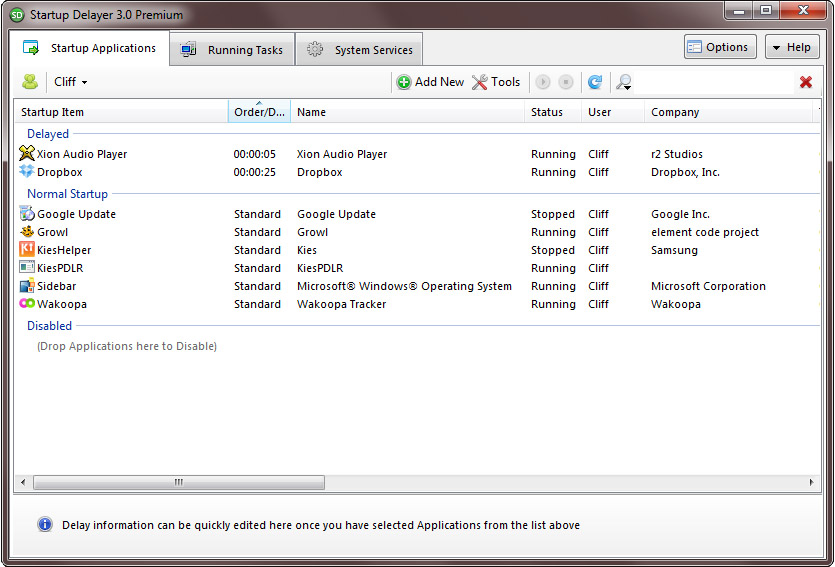
When you first launch Startup Delayer you'll be presented with the following window:

There are 3 items marked in the screenshot above. Each of those items is detailed below.

Item 1 - The tabs along the top allow you to switch between Startup Applications, Running Tasks and System Services. To delay an application, use the Startup Applications tab.

Item 2 - This displays the name of the active user. You can switch the active user by clicking on the drop down that contains the active user name.

Item 3 - This applications listed here are grouped into 3 sections. Delayed, Normal Startup and Disabled. To delay an item listed in the Normal Startup, simply click and drag and drop the item onto the Delayed group. Alternatively you can right click on an item and choose 'Delay Selected'

Once you have delayed an application the view will refresh to represent the change you made. In the screenshot below an application has been delayed and will start the next time I login.

Once a few items have been delayed, it is a simple matter of dragging and dropping them to modify the order that they start. The order is displayed in the Order column.

Changing Languages

Startup Delayer comes with support for several languages. In order to change Languages, use the Options button in the top right of the main Startup Delayer window.

Upon clicking the Options button, a window will be displayed. Ensure that the General tab is selected and then locate the dropdown entitled Active Language. Once the dropdown has been used to select a language, it will be applied to the Startup Delayer interface upon clicking the Save button.

Language selection choice is maintained per Windows user account and can be modified whenever required.

Context Menu

Startup Delayer supports Context Menus throughout the Application. The Context Menu can be displayed by right clicking a user interface element, or by using the appropriate key on supported keyboards.

Context Menus are most common on lists. In particular the Startup Applications, Running Tasks and System Services lists all support the Context Menu when right clicking on list items.

Quick Filter

Startup Delayer also allows you to filter the current view by entering text that searches various fields in the items of the list that is currently active. Quick Filters are applied as you type. To clear a filter, click the X button on the far right of the Filter box.


Built-in Filters

Startup Delayer has a number of built in filters that allow you to filter Startup Applications, Running Tasks and System Services. These can be toggled by placing a checkmark in the box next to the relevant items in the Filters menu.

Launch Process Window

The Launch Process Window is available while Startup Delayer is launching Applications after you login. By default it is hidden, but can be forced to be shown in the Options window. Settings for the Notifier Window can be found in the main Options window within Startup Delayer.

Startup List Tab

The Startup List provides a way to see what has launched and what is still to launch. You can Pause the Startup Process at any time using the Pause Startup Process checkbox in the top right. Skip and Launch Now buttons are available and operate on the current Startup Item.

The entire startup process can be cancelled by using the Cancel Launch Process now button. No further Applications will be launched and Startup Delayer will close.

Launch Log Tab

The Launch Log Tab contains the Launch Log for the current session. It is updated in real time and can be viewed again later from the main Startup Delayer window.

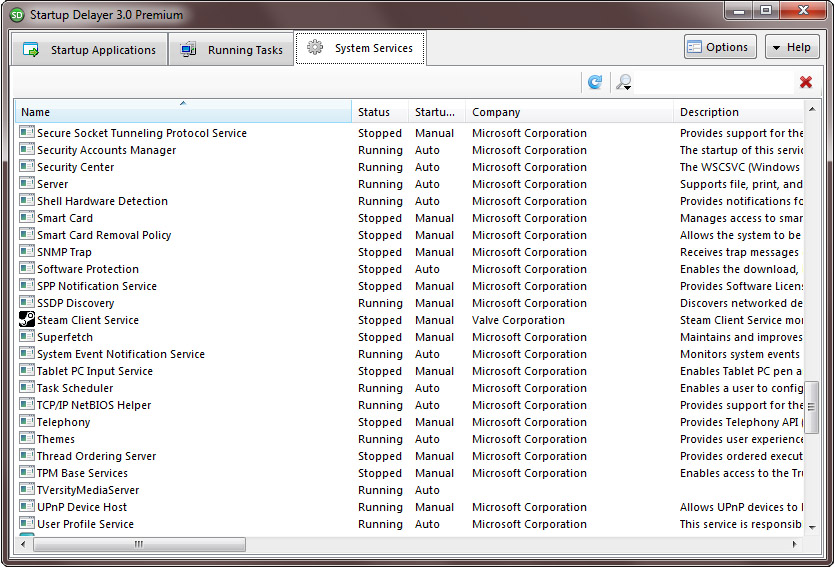
Managing Services

The System Services tab allows you to view all known System Services. Services can be stopped and started and details about the Services can be viewed.

Details about a task can be used by accessing the Context menu or by double clicking a Task.

Controlling Services

Services can be controlled by using the Context Menu on a Service or by viewing a Service's Properties. Services can be Stopped, Started, Restarted, or Paused. Controlling Services requires Administrator access.

Managing Tasks

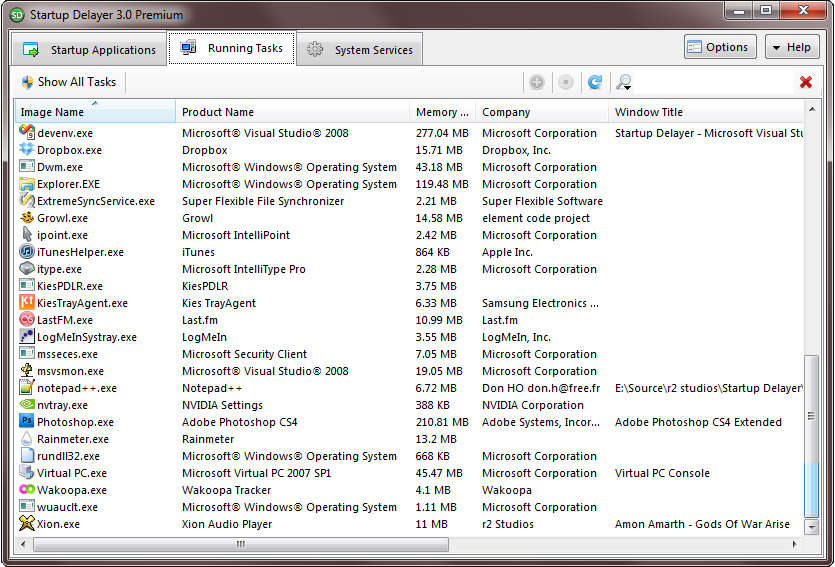
The Running Tasks tab allows you to view all running Tasks. Tasks can be terminated, added to startup, or details about the Task can be viewed.

Tasks can be terminated or added to startup by using the Context menu.

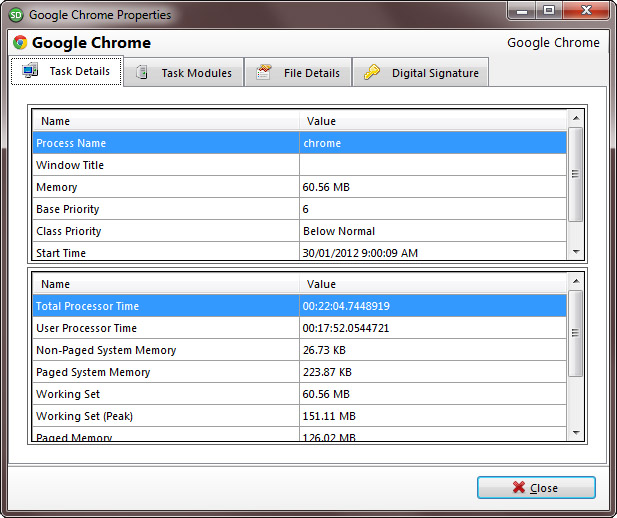
More details about a Task can be accessed from the Properties Window. You can access the properties window from the Context menu or by double clicking the Task.

Notifier Window

The Notifier Window is displayed during Startup if the Show Notifier checkbox is checked in the Options Window. Settings for the Notifier Window can be found in the main Options window within Startup Delayer.

The Skip button can be used to Skip whatever Startup Delayer is currently performing. If it is waiting for User confirmation the skip button will move to the next Application. If it is waiting for the CPU or Disk to become idle, the Skip button will cancel launching the Application and move onto the next.

The Launch Now button will force the Application to launch immediately, even if the Computer isn't idle or the time value hasn't expired.


Options

The Options window provides a way to tweak several settings within Startup Delayer.

General Tab

The Enable at Startup check box determines if any of the Delayed Applications are Launched when your Computer starts. Unchecking this will cause none of the Delayed Applications to Start.

The Active Language can be modified by using the Dropdown box to select a Language.

The Default Idle Values can be modified and will be used on any Applications that you delay, unless they have their own customized Delay values.

The Interface Skin can be modified by using the Dropdown box to select the Skin. The effects are immediately applied so that you can see the final result.

The Backup Location can be modified so that any Backups you create and manage are stored in a location other than the default. The Reset button allows you to Reset back to the Default Location.

The Startup Profiles Location can be modified so that any Startup Profiles you create and manage are stored in a location other than the default. The Reset button allows you to Reset back to the Default Location.

The Auto Refresh Tasks and Services checkbox automatically refreshes the Tasks and Services lists when they are active. This is useful for refreshing the Memory usage or Tasks or the Status of Services. The lists can be manually refreshed using the Refresh icon above the lists.

Launch Process Tab

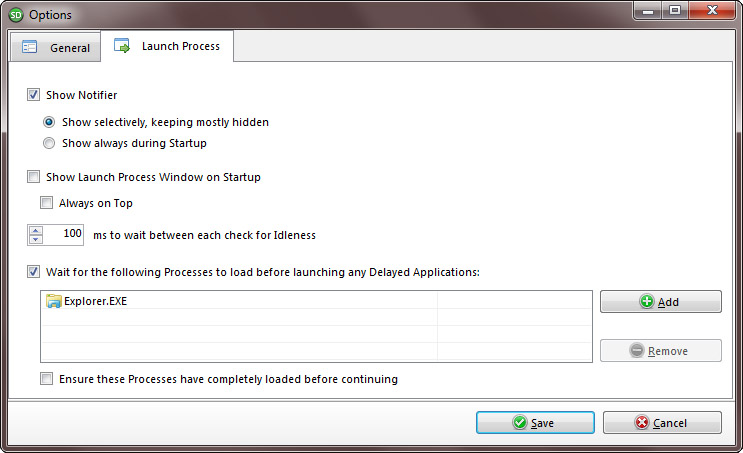
The Show Notifier checkbox allows you to enable or disable the Notifier window that is shown during the Startup Process. More information about the Notifier can be found under the relevant Documentation link.

     The Show selectively, keeping mostly hidden will only display the Notifier during Startup if its taking a while for the next Application to launch, or if User intervention is required.

The Show always during Startup will always show the Notifier window no matter what.

The Show Launch Process Window on Startup will show the Launch Process Window as soon as the Startup process begins. It allows you to see an overview of the Startup process, including a list of the Applications and which are launching next or have already been launched. More information about the Launch Process window can be found under the relevant Documentation link.

The Always on Top checkbox ensures that the Launch Process Window is displayed above all other Windows that aren't also marked as Always on Top. This allows you to 'hover' the window above most other windows.

The Wait for the following Processes to load before launching any Delayed Applications list allows you to create a list of Processes that must be running before Startup Delayer begins launching any applications. This might be useful if you require a certain Application to be running before other dependant Applications can be started. The Add and Remove buttons can be used to configure the Processes to wait for.

The Add button will display a Choose Process window with a list of all known Running Processes. You can choose one of these or else type a name into the Process Name field. Startup Delayer will perform partial matches if you don't include a full path.

Startup Applications

Startup Delayer's main focus is managing Startup Applications. Within this section you can find information relating to the management and properties of the Startup Applications.

Active User

The Active User determines which Applications are displayed in the Startup Applications tab list. The Startup Applications list will refresh to show all available Startup Applications that are currently started when the Active User logs into the computer.

An additional user entitled Common contains Startup Applications that are launched when any user logs into the computer. The Startup Applications displayed in the Common list are launched in addition to those for a particular user. All Common user items are launched before the Active user, unless they are delayed with an arbitrary time value.

Accessing some users on the system may require Administrator access. A prompt will be displayed if this is required. Generally this prompt will only appear if you have UAC enabled.

Backup and Restore

The Backup and Restore features allow you to create Backups for all users and their applications and then Restore them at any stage.

When Startup Applications are deleted they will be added to the Deleted Applications window.

Creating a Backup

Creating a Backup is performed by choosing Create a New Backup from the Backup and Restore menu.

The window that is displayed contains a list of all known users on the Computer. Placing a check mark next to each user ensures that their Delayed, Disabled and Normal startup items are all included in the backup. Any users that don't have a check mark, won't be included in the Backup.

A name can be given to the Backup and will be used later when you are managing your Backups in order to identity the Backup.

Some users may require Administrator access to have their Startup Applications backed up. If this is required, you will be prompted to elevate Startup Delayer and enter the Administrator password.

Deleted Applications

Each user will have any deleted Applications stored in the Deleted Applications window. This can be accessed from the Backup and Restore menu item.

To Restore a Deleted Application, select it from the Deleted Applications list and click the Restore Selected button. This will immediately restore the item. Restoring a Deleted Applications ensures that it is returned to it's previous state, be that Delayed, Normal or Disabled.

To permanently delete an Application, select it and click the Delete Selected button. This will permanently delete it and you will be unable to further restore it unless you have backed it up previously.

Restoring a Backup

Backups can be restored from the Manage Backups window accessible from the Backup and Restore menu item.

All available backups are listed in the Manage Backups window and can be restored by selecting them in the list, and choosing the Restore button.

Restoring a Backup will completely remove all current Startup Applications and replace them with those in the Backup.

Some backups may contain users that need Administrator access to restore. If this is required, a prompt will be displayed.

Deleting a Backup

To delete a Backup, select it in the Available Backups list and click the Delete button. This will permantely delete the backup but won't affect the current Startup Applications.

Launch Log

The Launch Log window displays a log of the most recent Startup launch. The Launch Log window can be accessed from the Logs menu item.

The Launch log's list of events detail when Startup Delayer was waiting for the Computer to become idle, what application it was launching or which condition it was waiting for.

A list of all the Users is presented on the left hand side and allows you to easily switch and view the Logs of other users by clicking on the user name.

Managing Applications

Startup Applications can be Delayed or Disabled by dragging and dropping them on the appropriate group in the Startup Applications list. Once Delayed or Disabled, they can be restored to Normal Startup by dragging them to the Normal Startup group. Alternatively the Context Menu can be used to Delay, Disable or return Startup Applications to Normal Startup.

Startup Applications can be re-ordered within the Delayed group by dragging and dropping them onto the item you want to launch them after. The list will be immediately updated when the Application is dropped.

Adding an Application

To Add an application as a Startup Application, click the Add Application menu item. After clicking this button a prompt will be displayed, allowing the ability to browse for a supported executable type. Supported executable types are .exe, .bat and .com.

Once an executable has been chosen, the Application Properties window will be displayed where further properties can be setup before the application is added.

If you find that after adding an Application to Startup Delayer, it still runs before Startup Delayer launches it, you may need to tell that Application to stop launching with Windows.

Make sure you've delayed the application in Startup Delayer (so that Startup Delayer knows about the Application) and then open the Application in question and locate the Options or Settings screen. You're looking for an option that is similar to 'Start with Windows' or 'Launch at Startup'. By turning this off, the Application will no longer keep adding itself back to the Windows Startup and instead Startup Delayer will launch it.

Deleting an Application

To delete a Startup Application, select it in the Application list and either use the Context menu, selecting the Delete Selected menu item, or press the Delete key on the keyboard. A prompt will be displayed requesting permission to delete the application.

Any deleted application are stored in the Deleted Applications list and can be later restored or permanently deleted.

Application Properties

The Application Properties for a Startup Application can be accessed by using the Context menu and clicking the Application Properties item or by double clicking the item in the list.

Launch Details and File Details are two available tabs in the Application Properties window.

The Show in Explorer button will open an Explorer window, selecting the Target file ready for any further investigation.

Launch Details

The Launch Details tab of the Application Properties allows you to edit the Label, Target and Start in path. Advanced Properties can be accessed by clicking the Advanced Properties button.

The Startup Type can be modified by using the Drop down at the top of the Window. You can choose between Delayed, Normal or Disabled. A label is displayed underneath the dropdown box detailing whether the Startup Application is launched by Startup Delayer or by Windows.

Startup Delayer will need to launch the Application if you modify any of the Advanced or Wait properties, even if you haven't specifically Delayed the Application. In this case the Startup Type will automatically be switched to Delayed.

File Details

The File Details tab gives an overview of some of the known properties of the Target file.

Any of the properties can be copied to the clipboard by selecting them and using the Context Menu to Copy the Selection.

General Tab

The General Tab allows you to modify the Label which identifies the Application, the Target (which includes the command line options) as well as the Folder to Start in and the User Note.

The Label is used to identify the Application and is generally stored as the name of the Shortcut or Registry entry that the Startup Application is located. Modifying this is generally not recommended unless you've added the Application yourself, as existing Applications will use this Label to identify themselves. User Notes can be used instead to associate meta data with an Application.

The Target determines the Application to launch. Command line options can be appended if they are required.

The Start in path can be used to modify the Folder or Directory that the Application is run from. If left blank, the Folder or Directory of the Target will be used.

The Edit User Note button will display the Edit User Note window ready for to edit the existing User Note, create a new User Note or Remove the existing User Note.

Delay Tab

The Delay Tab allows you to modify the type of Delay, if one is applied.

An Automatic delay will determine the best time to launch the Application according to the state of your Computer. You can modify the Idle percentage values on a per Applicaiton basis, or modify the default from the Options window.

A Manual delay can also be used, by specifying an arbitrary time value to wait before launching the Application. This method is not recommended as it doesn't take into account the state of your Computer.


Wait Tab

The Wait Tab provides options for waiting after the Application has been launched.

The Wait for this Application to terminate will wait until the Application has been terminated or closed. I.e. it is no longer running on your Computer. This could be used to wait for a script to finish executing before launching any more Applications, even if your Computer is idle.

The Wait for User confirmation will wait until the User has informed Startup Delayer that they would like to continue. No more Applications will be launched, even if your Computer is idle, until a User has confirmed they wish to continue.

The Don't Wait option disables any waiting and Startup Delayer will immediately move onto the next Startup Application ready to Launch it.


Advanced Tab

The Advanced Properties window has such properties as the Run mode, Priority and Launch Schedule.

The Run mode drop down box is used to launch an application either Normally, Minimized or Maximized by default. If a Startup Application supports this mode, the Application window will obey this when launched. Be aware that some applications do not obey the Run mode.

The Priority drop down box can be used to specify the Process Priority when it is launched. Once launched the priority will stay in effect until it is either changed by the Application itself, it is manually changed in the Task Manager, or the Application is terminated.

The Launch on specific days check box can be enabled and the required days can be chosen by clicking the Choose Days button. A window will display requesting you to place check boxes next to the specific days you wish to launch on.

The Don't Launch if an instance of this Application is already running will only launch the Application if another instance is not already running on your Computer. This ensures that only a single instance of the Application is running. Note that it does take into account the Command line options. If an Application has been launched with different Command line options, this is considered to be a seperate Application.

The Launch with highest privileges check box will force the Application to launch with the highest privileges under the current user. This generally prompts for an Administrator password when launching the Application. There may be no prompt if UAC is disabled.

The Automatically remove duplicates of this Application check box will check if the Application has added itself back to the Windows startup process. This is checked when the Startup Application is loaded into Startup Delayer. Any duplicates that have been detected will be automatically removed by Startup Delayer.

Performance Graph

The Performance Graph window displays a graph of the most recent Startup launch. The Performance Graph window can be accessed from the Logs menu item.

The Performance Graph displays statistics about your Startup Process by representing the Idle monitors as a percentage of Idle. The Green bars represent when an Application was launched during the Startup Process and allow you to see how busy your Computer was during the Startup and when Startup Delayer was able to launch your applications.

Startup Profiles

Startup Profiles provide a way for you to configure common sets of Startup Applications so that you can quickly switch between them. For example you might create a Startup Profile for work and one for games. The work profile might launch your email application, spreadsheet and word processor, while your games profile might only launch your games software and nothing else.

Startup Profiles can be created by accessing the Create New Startup Profile menu item in the Startup Profiles menu.

Startup Profiles are created from the existing Startup Applications in the Active User's list of Startup Applications. Individual Applications can be included or excluded from the Startup Profile by placing a check mark next to the Startup Application. A Startup Application with a check mark will ensure that the Application is included in the Startup Profile.

Managing Startup Profiles

Existing Startup Profiles can be managed by accessing the Manage Startup Profiles menu item in the Startup Profiles menu.

Existing Startup Profiles are listed in the under the Profiles tab in the Manage Startup Profiles window. Selecting a Startup Profile will display a list of the applications it contains in the list on the right hand side.

To apply a Startup Profile to the Active User, click the Apply now button. The Startup Applications will completely replace any existing Startup Applications in the Active User. Before Startup Delayed replaces the applications in the Active User, it will create a Snapshot and store it in the Snapshots tab of the Manage Startup Profiles window in case you would like to roll back.

Both Startup Profiles and Snapshots can be deleted and applied by selecting them and choosing either the Delete or Apply now button.

User Notes

User Notes can be applied to any Startup Application and allow you to associate any information with a Startup Application.

To associate a User Note with an application you can use the Context Menu or the Application Properties window.

Once a User Note has been associated with a Startup Application, it can be viewed in the User Note column, or by selecting a Startup Application and referring to the Status bar at the bottom of the window.

Any text that you include in a User Note is also searched when using the Quick Filter.

Managing User Notes

User Notes can be deleted from existing Startup Applications by editing their existing User Notes and clicking the Delete button, or by using the Manage User Notes window accessible from the Manage User Notes menu item.

User Notes can quickly be edited in the Manage User Notes window by selecting the existing associated User Note in the Available User Notes list and modifying the Note in the Edit Note text box to the right of the list.

Existing Notes can also be deleted by selecting them in the Available User Notes list and clicking the Delete button.

Premium Information

Startup Delayer 3.0 comes in two versions. Standard and Premium. Standard remains free, while Premium has a small cost associated.

The Premium version has several advanced features and helps to support future development. If you'd like to support the development of Startup Delayer, please consider upgrading to the Premium version.

Comparison Table 

Feature 2.0 3.0 Standard 3.0 Premium
Delay applications at Startup at a specific time Y Y Y
Configure Run type (normal, minimized, maximized) Y Y Y
Pause the startup till an application has terminated Y Y Y
Drag and Drop organisation   Y Y
Automatically launches applications based on computer idleness   Y Y
Delay local user applications without administrator rights   Y Y
Modify any local user from the one user account   Y Y
Windows 7, UAC, 64bit and Digital Signature Aware   Y Y
Multi-select and manipulate applications   Y Y
Associate User Notes with any Startup Application   Y Y
View Performance Graph of last Startup   Y Y
Quick Filter and built in filters to easily locate Applications   Y Y
Easily search the internet for more information on an Application   Y Y
Advanced Wait options allowing for User confirmation, Application termination or Application initialization   Y Y
Ignore Launching an application if its already running   Y Y
Undelete previously deleted applications   Y Y
View and manipulate Running Tasks   Y Y
View and manipulate Services   Y Y
Configure an application to run with highest privileges   Y Y
Automatically remove duplicate entries added by applications   Y Y
Modify the Priority of an application at Launch   Y Y
View the running status of a Startup Application   Y Y
Copy and Paste applications between user accounts     Y
Convert running Tasks to Startup Applications     Y
Backup and Restore all local users and applications     Y
Startup Profiles     Y
Launch applications on a schedule     Y
All Ads removed from the r2 Studios website     Y
Support future development     Y
1 license supports all your home computers     Y
Discount pricing available for commercial purchases     Y
Cost Free Free $20.00 USD


Old Beta Releases

Version File size Date Uploaded Link Release notes
v2.5 build 137 979.94 KB 08th Mar 2009 Download now View Release notes
v2.3 build 132 1015.88 KB 28th Jul 2008 Download now View Release notes
v2.3 build 131 963.85 KB 02nd Mar 2008 Download now View Release notes
v2.3 build 129 996.09 KB 22nd Nov 2007 Download now View Release notes
v2.3 build 128 957.66 KB 20th Oct 2007 Download now View Release notes
v2.3 build 127 991.17 KB 08th Sep 2007 Download now View Release notes
v2.3 build 126 982.28 KB 21st Jul 2007 Download now View Release notes
v2.3 build 124 977.28 KB 11th Jul 2007 Download now View Release notes
v2.3 build 123 978.4 KB 23rd May 2007 Download now View Release notes
v2.3 build 113 954.86 KB 13th Mar 2007 Download now View Release notes
v2.3 build 112 954.81 KB 08th Mar 2007 Download now View Release notes
v2.3 build 111 953.77 KB 04th Mar 2007 Download now View Release notes
v2.3 build 110 953.54 KB 27th Feb 2007 Download now View Release notes
v2.2 build 109 987.22 KB 26th Feb 2007 Download now View Release notes
v2.2 build 105 983.91 KB 07th Feb 2007 Download now View Release notes
v2.2 build 84 1.08 MB 02nd Aug 2006 Download now View Release notes
v2.2 build 82 1.08 MB 27th Jun 2006 Download now View Release notes
v2.2 build 73 1.07 MB 23rd Jun 2006 Download now View Release notes
v2.2 build 72 1.08 MB 15th Jun 2006 Download now View Release notes
v2.2 build 67 1.05 MB 11th Jun 2006 Download now View Release notes
v2.2 build 65 1.05 MB 09th Jun 2006 Download now View Release notes
v2.2 build 60 1.04 MB 06th May 2006 Download now View Release notes
v2.2 build 55 1.04 MB 02nd May 2006 Download now View Release notes
v2.2 build 52 1.03 MB 30th Apr 2006 Download now View Release notes
v2.2 build 50 1.03 MB 20th Apr 2006 Download now View Release notes
v2.2 build 47 1.29 MB 14th Apr 2006 Download now View Release notes
v2.2 build 46 1.24 MB 10th Apr 2006 Download now View Release notes
v2.2 build 45 1.24 MB 05th Apr 2006 Download now View Release notes
v2.2 build 43 1.24 MB 26th Mar 2006 Download now View Release notes
v2.2 build 42 1.24 MB 21st Mar 2006 Download now View Release notes
v2.2 build 37 1.23 MB 29th Dec 2005 Download now View Release notes
v2.2 build 35 1.22 MB 10th Nov 2005 Download now View Release notes
v2.2 build 30 1.25 MB 17th Aug 2005 Download now View Release notes
v2.2 build 26 1.25 MB 11th Aug 2005 Download now None available
v2.2 build 21 1.2 MB 09th Aug 2005 Download now None available
v2.2 build 20 1.2 MB 23rd Jul 2005 Download now None available
v2.2 build 14 1.2 MB 13th Nov 2004 Download now None available