

June 20, 2013 6:40:21 PM (GMT+10) © 2001 - 2013 r2 Studios. All rights reserved
Find out more about Startup Delayer
Google Ad:

Products


Archived Products


Google Ad:

iPost

Compatible with: 98 / ME / 2000 / XP - 32bitVersion: 1.0 build 30 (1st Jun 2001)

Overview

Do you have a dial up connection or a dynamic IP Address? Do you like to know what your IP address is from anywhere in the world, even if your connection drops out and reconnects??

If so, then iPost is for you.

Simply create a template page for iPost to use, specifying what type of details you want it to add. Details can be anything like IP Address or current time of posting, etc.

iPost will monitor your IP address and upload a modified copy of the template filling in the details that you want it to report to a web site somewhere.

From there you can view the site and see your IP address!

FAQ


What are the Special Tags?


Special Tags for the HTML (or any) documents are as follows: = Replaces this with the current IP address = Replaces this with the current Date


Documentation

What is iPost?

Do you have a dial up connection or a dynamic IP address? Do you like to know what your IP address is from anywhere in the world, even if your connection drops out and reconnects??
 
If so, then iPost is for you.
 
Simply create a template page for iPost to use, specifying what type of details you want it to add. Details can be anything like IP Address or current time of posting, etc.
 
iPost will monitor your IP address and upload a modified copy of the template filling in the details that you want it to report to a web site somewhere.
 
From there you can view the site and see your IP address!

Quick Start

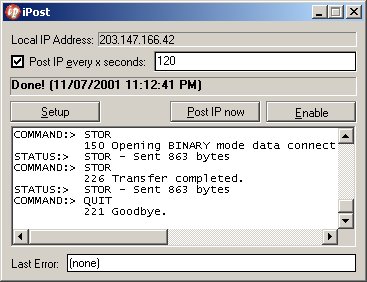
When iPost is first launched, it is represented in the System tray.
 
To setup iPost, right click on the iPost icon in the system tray, and select 'Show iPost' from the popup menu.
 
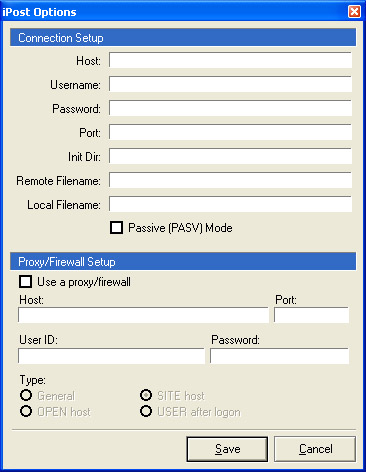
Ensure that the 'Connection' tab has been selected, and then begin filling in the details of your FTP server.
 
 
Site Address: The FTP site address is used to identify the FTP site to which you want to connect. 
 
Port: Port number of the FTP server to connect to. Usually this is 21.
 
User Name: User name used when logging in the FTP server.
 
Password: Enter your Password for the server here. It will show up as asterisks.
 
Remote Path: Enter the path you want to start in on the FTP server
 
Pasv Mode: This is enabled by default for compatibility with proxy servers, firewalls, and dsl/cable routers. When enabled, the client (you) makes an outgoing connection to the server. When disabled, the server makes an incoming connection to the client. This option can be toggled per-site as well. 
 
Local Template File: This is the file that you want to have iPost upload. It contains all the tags and any other information you need uploaded, such as style information.
 
Available Tags:
<ipaddress> - Replaces this tag with your IP Address
<time> - Replaces this tag with the current time
<date> - Replaces this tag with the current date
 

Latest Beta Release

Version File size Date Uploaded Link Release notes
v2.0 build 7 151.52 KB 03rd Feb 2007 Download now View Release notes

Old Beta Releases

Version File size Date Uploaded Link Release notes
v2.0 build 6 150.47 KB 05th Jan 2006 Download now View Release notes
v2.0 build 5 149.43 KB 06th Jan 2005 Download now None available